 SmartHomeTricks
Smart Home Assistant Package: Automated House Sitter Access Management
Managing temporary access for house sitters, cleaners, or maintenance workers can be challenging when you’re away from home. In this article, I’ll walk through a Home Assistant package I developed that automates access control based on scheduled time windows—perfect for granting temporary access without manual intervention.
The Problem
When you have someone like a house sitter who needs access to your home at specific times, you want:
- Scheduled access windows: Access should only be available during predetermined times
- Automatic activation/deactivation: No manual toggling when you’re on vacation
- Flexible duration control: Different visits might require different time windows
- Clear status visibility: Know at a glance when the next access window is
The Solution
This package creates a time-based access control system using Home Assistant’s native components. It consists of four main elements:
1. Access Control Toggle
input_boolean:
  housesitter_access_enabled:
    name: "Accesso House Sitter"
    icon: mdi:login
This boolean entity serves as your access control flag.
2. Next Access Scheduling
input_datetime:
  next_housesitter_access:
    name: "Prossimo accesso House Sitter"
    has_date: true
    has_time: true
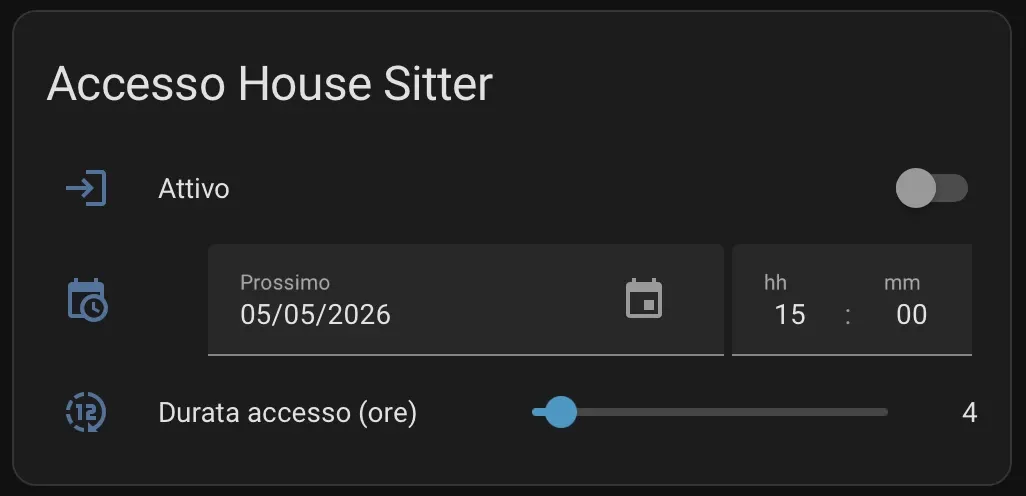
This datetime input allows you to set when the next access window begins. The interface (see below) provides an easy-to-use date and time picker.
3. Access Duration Control
input_number:
  tempo_massimo_accesso_housesitter:
    min: 3
    max: 15
    step: 1
This number input defines how many hours the access window should remain open. In this example, it’s configured for 3-15 hours with 1-hour increments—ideal for day-long house sitting sessions.
4. Smart Status Sensor
The template sensor is the brain of the operation:
template:
  - sensor:
      - name: "Accesso House Sitter"
        state: >-
          {% set start_time = states('input_datetime.next_housesitter_access') | as_datetime | as_local %}
          {% set interval_hours = states('input_number.tempo_massimo_accesso_housesitter') | float(0) %}
          {% if start_time not in ['unknown', 'unavailable'] and interval_hours > 0 %}
            {% set start = as_datetime(start_time) %}
            {% set end = start + timedelta(hours=interval_hours) %}
            {% if start <= now() <= end %}
              ora
            {% elif start > now() %}
              {% set date_str = start_time.strftime('%d/%m/%Y') %}
              {% set time_str = start_time.strftime('%H:%M') %}
              Prossimo accesso: {{ date_str }} dalle {{ time_str }}
            {% else %}
              Nessun accesso pianificato
            {% endif %}
          {% endif %}
What it does:
- Calculates the access window based on start time and duration
- Returns
"ora"(Italian for “now”) when currently within the access window - Shows the next scheduled access time if it’s in the future
- Displays “Nessun accesso pianificato” (No access planned) if the window has passed
Automation Magic
Two really simple automations handle the automatic toggling:
Activation Automation
- id: attiva_accesso_housesitter
  alias: Attiva accesso Housesitter
  triggers:
    - trigger: state
      entity_id: sensor.accesso_housesitter
      to: 'ora'
  action:
    - action: input_boolean.turn_on
      target:
        entity_id: input_boolean.housesitter_access_enabled
When the sensor state changes to "ora", this automation immediately enables access.
Deactivation Automation
- id: disattiva_accesso_housesitter
  alias: Disattiva accesso Housesitter
  triggers:
    - trigger: state
      entity_id: sensor.accesso_housesitter
  condition:
    - condition: template
      value_template: "{{ trigger.to_state.state != 'ora' }}"
  action:
    - action: input_boolean.turn_off
      target:
        entity_id: input_boolean.housesitter_access_enabled
When the sensor state changes to anything other than "ora", access is automatically disabled.
Configuration Dashboard (for the owner)
You can simply add in a configuration page of your dashboard the three entities (input_boolean.housesitter_access_enabled, input_datetime.next_housesitter_access, and input_number.tempo_massimo_accesso_housesitter) to easily manage the access schedule and duration:
type: grid
cards:
  - type: entities
    entities:
      - entity: input_boolean.housesitter_access_enabled
        name: Attivo
      - entity: input_datetime.next_housesitter_access
        name: Prossimo
      - entity: input_number.tempo_massimo_accesso_housesitter
        name: Durata accesso (ore)
        icon: mdi:hours-12
    show_header_toggle: false
    state_color: true
    title: Accesso House Sitter
column_span: 1
With explicit input_boolean button you can toggle the access on/off manually if needed, even if not previously scheduled.
Dynamic Dashboard with Conditional Visibility (for the House sitter)
The real power of this package shines in the dashboard implementation. This setup creates a context-aware interface that adapts based on whether access is currently enabled:
- type: sections
  max_columns: 4
  title: Housesitter
  path: housesitter
  visible:
    - user: 2427a4f8f18b449b8e0a78718d755193
    - user: b33772e864f541b99fb4db8101f49c0b
  sections:
    - type: grid
      cards:
        - type: custom:mushroom-title-card
          title: '{{ states(''sensor.accesso_housesitter'') }}'
          grid_options:
            columns: full
        - type: custom:mushroom-title-card
          title: Hello, {{ sensor.accesso_housesitter }} !
      visibility:
        - condition: state
          entity: input_boolean.housesitter_access_enabled
          state: 'off'
    - type: grid
      cards:
        - type: horizontal-stack
          cards:
            - type: custom:button-card
              show_name: true
              show_icon: true
              state:
                - value: locked
                  color: grey
                  icon: mdi:gate
                - value: unlocked
                  color: green
                  icon: mdi:gate-open
              tap_action:
                action: call-service
                service: lock.unlock
                service_data:
                  entity_id: lock.cancello
              entity: lock.ingresso
              show_state: false
              name: Apri cancello
              show_label: false
              aspect_ratio: 1/1
              size: 60%
            - type: custom:button-card
              show_name: true
              show_icon: true
              icon: mdi:door-closed
              state:
                - value: locked
                  icon: mdi:door-closed-lock
                - value: unlocked
                  icon: mdi:door-open
              tap_action:
                action: more-info
              entity: lock.porta_ingresso
              show_state: false
              name: Porta
              show_label: false
              aspect_ratio: 1/1
              size: 60%
            - type: custom:button-card
              show_name: true
              show_icon: true
              icon: mdi:exit-run
              color: green
              tap_action:
                action: perform-action
                perform_action: input_boolean.turn_off
                target:
                  entity_id: input_boolean.athome
              show_state: false
              name: Esci di casa
              show_label: false
              aspect_ratio: 1/1
              size: 60%
      visibility:
        - condition: state
          entity: input_boolean.housesitter_access_enabled
          state: 'on'
  icon: mdi:vacuum
  cards: []
How This Dashboard Works
The dashboard is designed to be used directly by the house sitter through their personal device (smartphone/tablet).
When Access is Disabled:
- Displays the next scheduled access time or “No access planned” message
- No control buttons are visible—preventing unauthorized actions


When Access is Enabled:
- The greeting section disappears
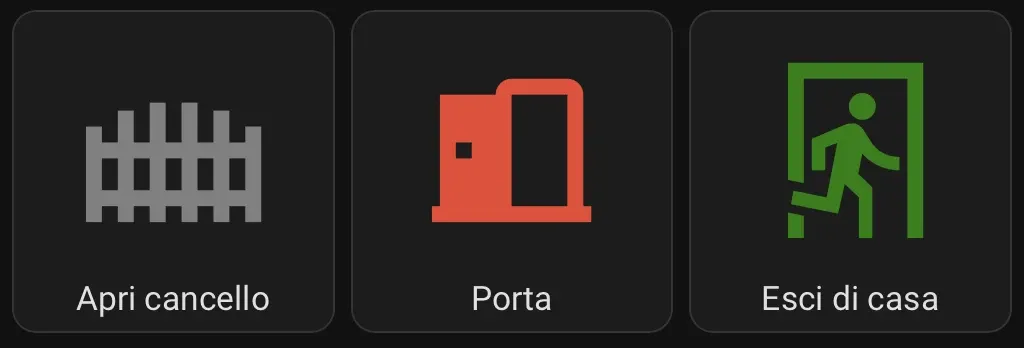
- Control buttons appear for:
- Gate unlock (
Apri cancello): Unlocks the entrance gate - Door status (
Porta): Shows/controls the main door lock - Exit home (
Esci di casa): Triggers the “away” routine when leaving (It automatically turns off lights, locks doors, lowers thermostat, close curtains, and so on)`)
- Gate unlock (
Key Features:
- User-specific visibility: The dashboard only appears for authorized users (note the user ID restrictions)
- Dynamic templating: The title card shows the live sensor state using Jinja2 templates
- Conditional sections: Entire card sections show/hide based on the access boolean
- Visual feedback: Lock states use different icons and colors (grey for locked, green for unlocked)
- Custom button cards: Uses the popular
button-cardcustom component for rich interactions
Required Custom Components:
I used this components to align the dashboard with my current layout, but they are not mandatory; If you like them, remember to install them via HACS or manually:
Advantages of This Approach
- Zero Manual Intervention: Once scheduled, everything happens automatically
- Reusable: Duplicate the package for multiple people (cleaners, pet sitters, etc.)
- Flexible: Easily adjust times and durations from the UI
- Safe: Access automatically revokes after the time window
- Visible: Clear status display prevents confusion
Security Considerations
- Always test thoroughly before relying on automated access control
- Consider adding notification automations when access is granted/revoked
- Implement backup manual controls in case of system failure
- Restrict dashboard access to trusted users only and limit the visibility only to this specific dashboard
- Remove
- Review Home Assistant security best practices for remote access
Locking Down the Interface with Kiosk Mode
Since you’re providing your house sitter with a remote dedicated tablet or device to control your smart home, consider using kiosk-mode to restrict their interface. This prevents access to sensitive configuration areas and limits them to only their assigned dashboard:
kiosk_mode:
  user_settings:
    - users:
        - housesitter
      hide_search: true
      hide_assistant: true
      hide_header: true
This configuration removes the search bar, assistant, and header menus for the house sitter’s user account, creating a simplified, locked-down interface that shows only the controls they need. Combined with proper user permissions in Home Assistant, this creates a secure, fool-proof experience.
Extending the Package
Possible enhancements:
- Recurring schedules: Add weekly recurring access windows
- Multiple house sitters: Create separate packages for different people
- Access logging: Track when access was used
- Camera integration: Capture images when access is granted
And if you don’t want to use the dashboard and give access to your house sitter from his/her device, you can:
- Add a keylock integration to your smart lock and provide temporary access codes that can be generated and revoked via Home Assistant
- Create an automatic gate opener and trigger it when the house sitter arrives and rings the doorbell (you can use a smart doorbell or a simple smart button at the gate)
- Create a Telegram bot to replace all the dashboard controls with simple Telegram commands (e.g. “unlock gate”, “lock door”, “what’s the next access time?”) and send notifications when access is granted/revoked (but this is a bit more complex and requires an external service, so I maybe will cover it one day in the
complete use casessection of the website).
Conclusion
This Home Assistant package demonstrates how simple components can combine to create useful automation. By leveraging template sensors and state-based automations, you can build a reliable, hands-off access management system for your smart home. The best part? Once configured, you can schedule your house sitter’s access weeks in advance and forget about it—Home Assistant handles the rest.
You can download the full package yaml file here: simply add to your Home Assistant packages directory and restart.